How Fillr works
Fillr has two parts that work together. The Chrome extension fills forms on the pages you visit. The dashboard — this website — is where your presets and datasets live. You need both.
Step 1
Install and sign in
Add Fillr to Chrome, then sign in here on the dashboard. The extension connects to your account by itself — nothing to copy or paste.
Step 2
Fill any form right away
Open the Fillr panel on any page and click Fill. Fillr writes realistic made-up values into every field — no setup needed.
Step 3
Save forms you fill often
Click Save to turn a form into a preset. Fillr remembers every field, and you choose how each one gets filled.
Step 4
Fill it your way, in one click
Next time you visit that page, Fillr recognizes it and offers your preset. One click fills the whole form — you review it and submit.
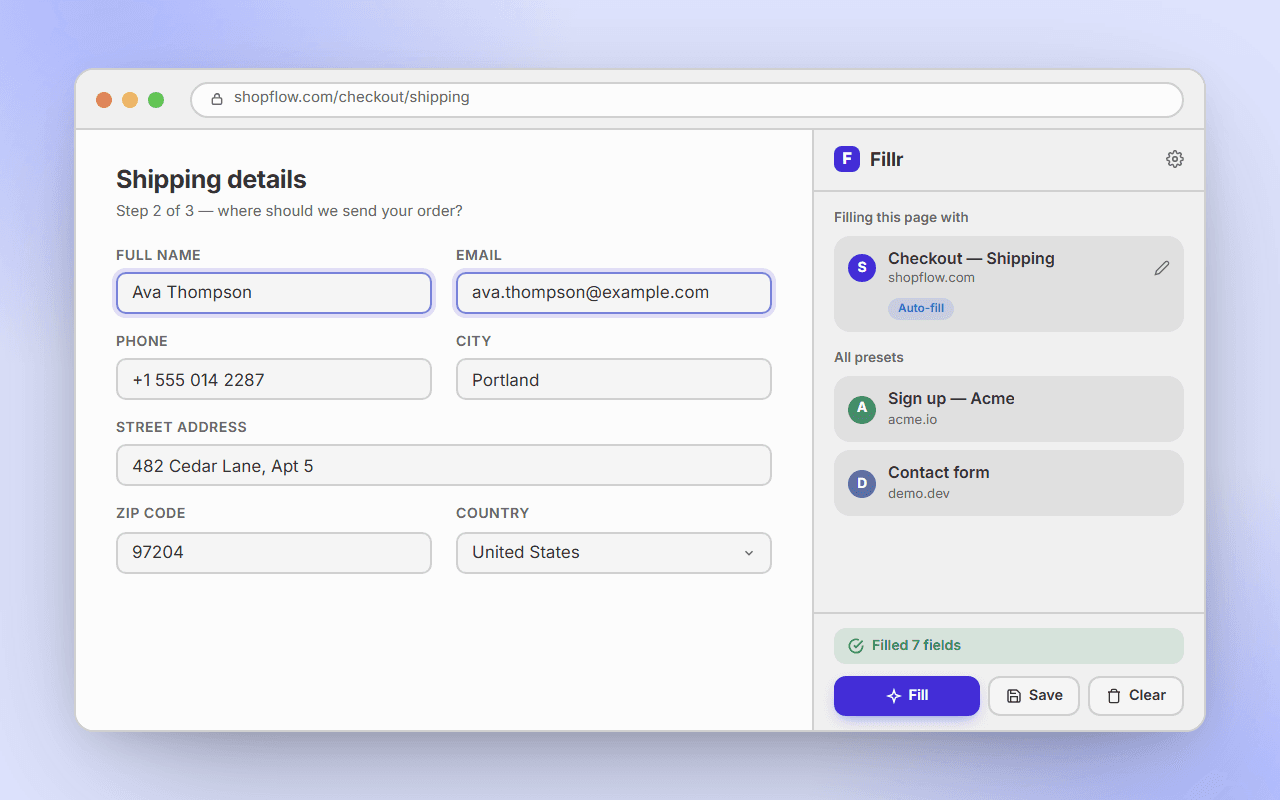
Two places to click
You can use Fillr from two spots — both do the same thing:
The side panel
The full Fillr view, opened from the toolbar icon. It shows which preset matches the page, lists all your presets, and has the Fill, Save, and Clear buttons.
The floating bar
A small bar that sits on the page itself, with the same buttons. Drag it anywhere, or turn it off if you prefer the panel only.
Saved forms
Presets
A preset is a form Fillr has saved — every field, plus a rule for how to fill it. Save it once, use it forever: open the page, click Fill, done. Fresh values every time.
Saving a form
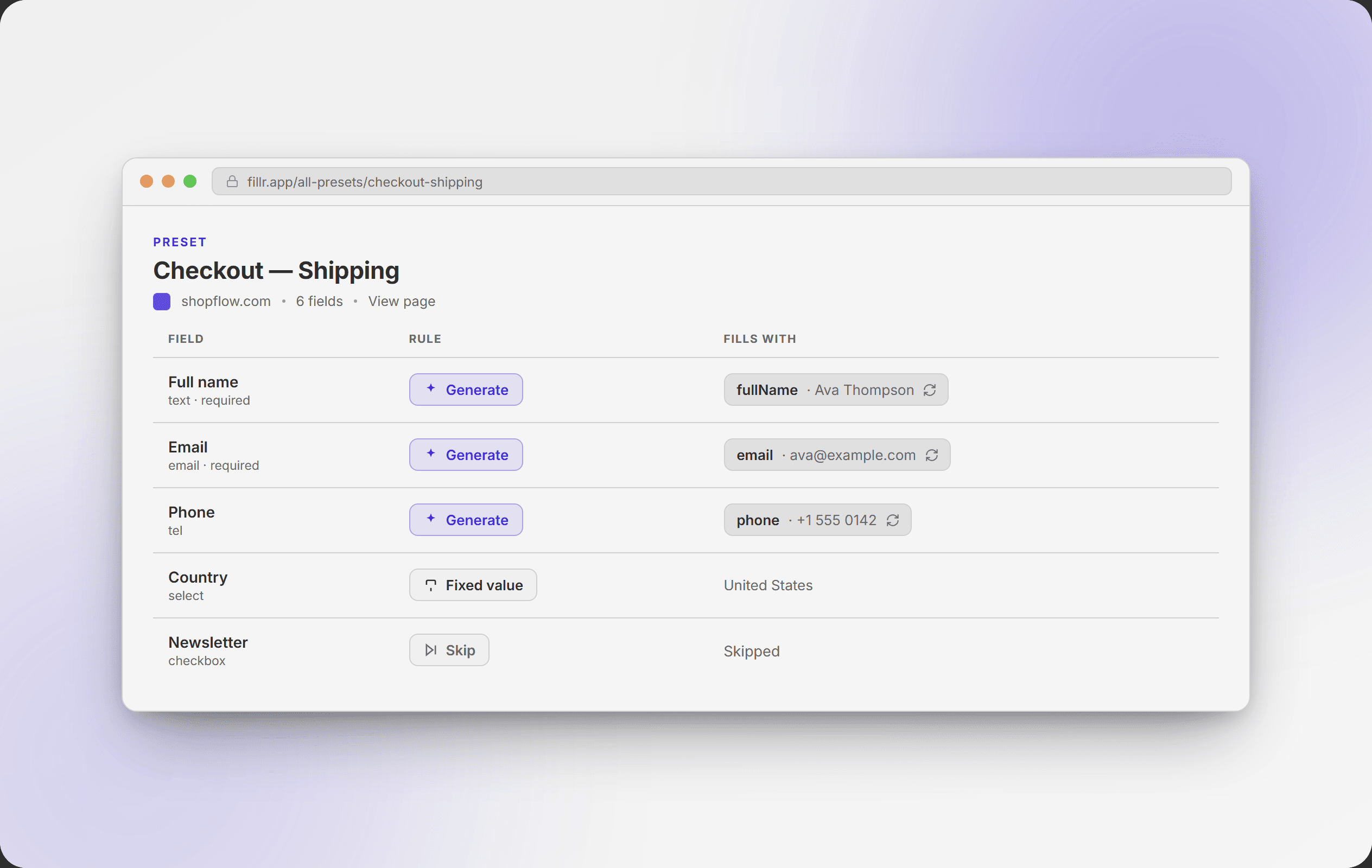
You never build a preset by hand. Go to the page with the form, open Fillr, and click Save. Every field appears in the dashboard editor with its name and type. Give the preset a name, pick a rule for each field, and save.
Filling rules
Every field gets one of five rules. The rule decides what happens to that field when you click Fill:
- Fillr makes up a realistic value each time — a name, an email, an address, a phone number, a date, and many more. You pick the kind of value from a list.Generate
- Always fill in the exact value you typed. Good for things that must never change, like a test email you own.Fixed value
- Take the value from a column of a linked dataset — your own data instead of made-up data. See Using them together below.Dataset columnPro
- Empty the field on purpose.Blank
- Leave the field exactly as it is — Fillr won't touch it.Skip
Not sure what your rules will produce? Click Preview fill in the editor to see one example before you fill anything for real.
Matching the right pages
A preset remembers which web addresses it belongs to. When you open a page, the extension checks the address and picks the matching preset for you. Fillr suggests a sensible match when you save a form, and you can change it in the editor — make it wider so one preset covers a whole site, or narrower so it only matches one page. If more than one preset matches, the side panel simply asks which one you want.
Your test data
Datasets
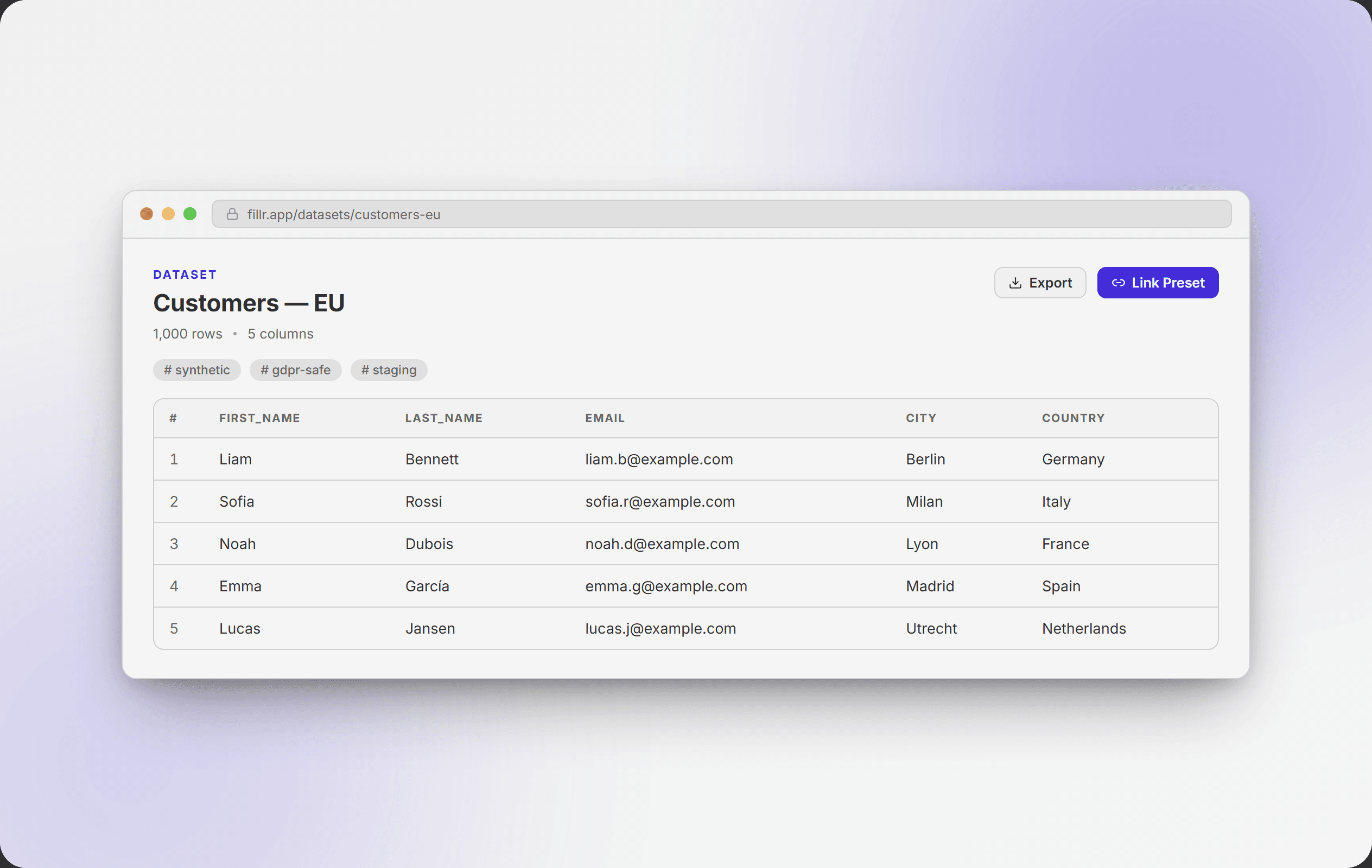
A dataset is a small table of test data — columns with names, rows with values, like a tiny spreadsheet that lives in Fillr. Use datasets to build and export test data on their own, or to feed your own values into forms (next section).
Three ways to create one
Import
Upload a CSV, Excel, or JSON file. Fillr shows you a preview, then saves the rows.
Generate
Pick the columns you want and how many rows. Fillr fills the table with realistic made-up data.
Start blank
Begin with an empty table and type the rows in yourself, like a small spreadsheet.
Editing and exporting
Open a dataset to edit any cell in place, rename or delete columns, and add tags so it's easy to find later. When you need the data somewhere else, export the whole table as CSV, Excel, or JSON.
The free plan includes 3 datasets with up to 50 rows each. Pro removes those limits.
The powerful part
Using presets and datasets together
Presets fill forms. Datasets hold data. Link them together, and your forms get filled with your own rows — the exact emails, names, and addresses from your table instead of random made-up ones. That's what you need when your test data has to be precise. Filling from a dataset is a Pro feature. Pro
Dataset column
e.g. your “Email” column
Preset field
fills the form’s email input
Linking and mapping columns
You can start from either side — open a preset and click Link Dataset, or open a dataset and click Link Preset. Then match each column to a field: your Email column fills the form's email field, your Full name column fills the name field, and so on. Fillr matches columns with obvious names by itself, and you fix the rest. Fields you don't map keep their normal rule — generated, fixed, blank, or skipped.
Want a matching dataset without building one? Open a preset and click Generate Sheet: Fillr creates a dataset whose columns match the form's fields, fills it with realistic data, and links it for you. Pro
Which row gets used
Each time you fill, Fillr takes one row from the linked dataset. You choose how:
Random
A different random row each time you fill.
In order
Row 1, then row 2, then row 3… After the last row it starts over from the top.
After every fill, Fillr tells you which row it used — for example “row 3 of 20” — so you always know where you are in your data.
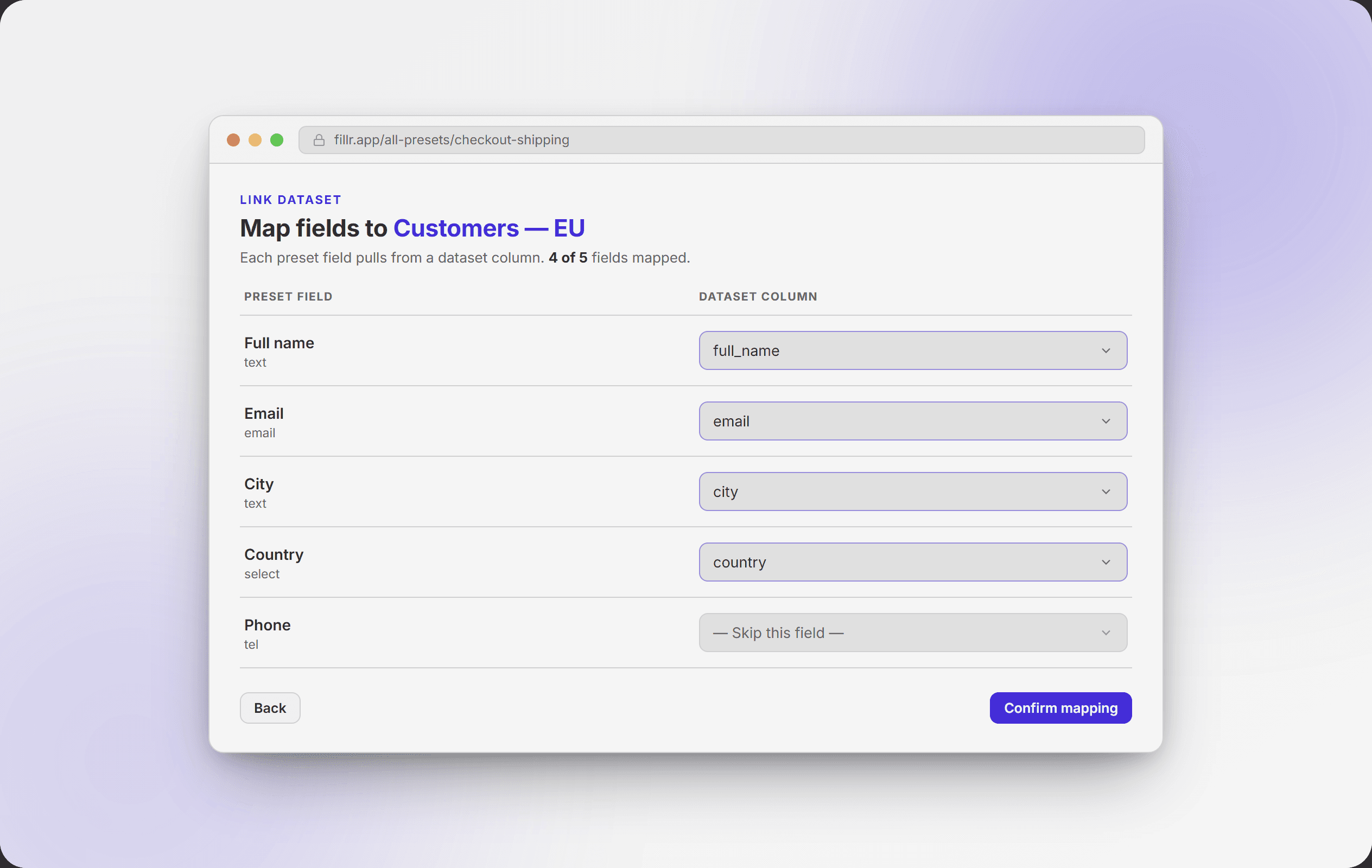
Tip: if you rename or delete a column in a linked dataset, Fillr updates the link too — your mappings don't quietly break.